ICON-style booths · Windows
Photo booth rear screen: what to show and how to run it live.
This guide is for photo booth owners with a second photo booth screen on the back of the booth, such as the 19-inch-class vertical touch screen on ICON-style booths. It covers what to put on a rear screen, how to set up a portrait second monitor on Windows, and how BoothLoop turns that screen into a live slideshow of every photo the booth takes, running on the same PC as LumaBooth with no Wi-Fi needed.
Front screen
Tap to start
LumaBooth
The guest in the booth: capture, countdown, print.
One PC
Windows + Chrome
Rear screen

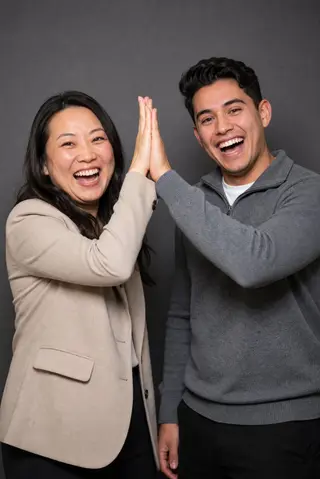

Guests in line: BoothLoop's live belt.
01 / The basics
What is a photo booth rear screen, and why does it matter?
A photo booth rear screen is a second display on the back of the booth, facing the room rather than the person being photographed. Owners also call it the back screen or second screen. The front screen belongs to whoever is in the booth: it shows the camera preview, the countdown and the print. The rear screen belongs to everyone else.
That matters because most of an event's guests are not in the booth at any given moment. They are in line, walking past, or deciding whether to go over. A rear screen showing real photos from the night is the clearest pitch the booth has: it shows people what they will get, and it gives the group that just stepped out a reason to stay and watch for their photo. Everybooth describes the ICON 2's rear screen as a "digital branding panel, signage, slideshow and sharing kiosk".
If you are pricing a new booth build, our guide to starting a photo booth business covers where a rear screen fits in the kit.
02 / Content
What should you show on the back screen of a photo booth?
Three things earn space on a photo booth's back screen. BoothLoop handles all three on one portrait display and switches between them on its own.
Live photos
Every photo the booth takes, seconds after it is taken. Guests in line see what the booth produces, and the group that just finished sees itself.
Branding
The host's logo in a corner, a scrolling text bar with names or a hashtag, and a theme. For corporate events this is the sponsor panel the client paid for.
Welcome loop
When the booth is idle, an attract image or video that tells people what the booth is and invites them over.
Live photos do the most work, so BoothLoop shows them by default. Branding sits on top of the photos: a logo up to 5 MB placed in any corner, a scrolling text bar in one of eight styles, a photo counter, and one of six themes. For receptions, the wedding slideshow guide shows how couples' names and a monogram look on the rear screen. The welcome loop takes over only when the booth goes quiet, and the welcome screen guide covers sizes and design.
03 / ICON-style booths
Can an ICON-style booth's rear screen run a live slideshow?
Yes, when a Windows PC drives it. ICON-style booths put a 19-inch-class portrait touch screen on the back of the cabinet. Everybooth lists the ICON 2 with a 19-inch rear vertical touch screen and an iPad Pro on the front, per its ICON product page.
Here is the honest part. The genuine ICON ships as an iPad booth, and BoothLoop does not run on iPads. BoothLoop needs a Windows PC with Google Chrome running LumaBooth for Windows (formerly dslrBooth), or any app that saves photos into a folder. One PC runs both: the booth software on the front screen and BoothLoop on the rear. If your ICON-style cabinet already has a Windows PC inside, you have what you need. If it runs on an iPad, you would need to add that PC.
Unsure whether your build qualifies? Read who builds BoothLoop and tell us your booth type in the beta form.
ICON-style rear screen at a glance
- Panel
- 19-inch class, portrait, touch
- Resolution
- Not published by Everybooth. Common 1080p portrait panels are 1080 × 1920
- Genuine ICON 2 front
- iPad Pro 13-inch (an iPad booth)
- BoothLoop needs
- A Windows PC with Chrome and LumaBooth for Windows or similar
Not affiliated
04 / Setup
How do you set up a second monitor in portrait on Windows?
Extend the desktop, do not mirror it. LumaBooth's own article on using a second monitor describes mirroring, which copies the front screen to the back. A rear-screen slideshow needs the second monitor to be its own portrait desktop, which takes five steps in Windows.
These steps apply to any Windows booth with a dslrBooth second monitor, not only ICON-style cabinets.
-
01
Connect the rear screen
Plug the rear monitor into a spare video output on the booth PC (HDMI or DisplayPort). If it is a touch screen, also connect its USB touch cable to the same PC.
-
02
Extend the desktop
Open Settings > System > Display. Under Multiple displays, choose "Extend these displays" so the rear screen gets its own desktop instead of a mirror of the front screen.
-
03
Turn the rear screen to portrait
Select the rear display at the top of Display settings, then set Display orientation to Portrait (or Portrait flipped if the panel is mounted the other way up). Keep the front screen as the main display for your booth software.
-
04
Map touch to the right screen
For a touch rear screen, open Control Panel > Tablet PC Settings > Setup and follow the prompt on the rear screen, so a tap on the back of the booth lands on the back display.
-
05
Place BoothLoop on the rear screen
Start BoothLoop. It opens in its own Chrome app window. Drag the window onto the rear screen, press the fullscreen button, and run the setup wizard: select the event, select the folders, set branding and theme, then Start.
05 / Layout
How does BoothLoop choose between the belt and full-screen photos?
By the shape of each photo. A portrait rear screen is tall and narrow, and most booth photos are landscape. BoothLoop stacks landscape photos on a belt, up to three on screen at once, with each new photo sliding into the middle slot. Mostly-portrait photos, such as template prints, switch to full-screen single photos automatically. Square photos are cropped or letterboxed, your choice.
The belt moves in one of two ways. Stepped slides one slot in 700 ms and then pauses. Smooth cruises at a constant speed. Photos taken within the set gap, 20 seconds by default, stay together as one photoshoot. New photos reach the rear screen about 1.5 seconds after the booth software finishes writing them, and if the booth software applies a template and rewrites a file, the screen refreshes it.
The BoothLoop overview lists every belt setting.




06 / Touch
Can guests swipe through photos on the rear screen?
Yes. On a touch rear screen, guests can drag the BoothLoop belt with a finger to find their photo, and it keeps moving with momentum when they let go. On ICON-style touch panels, the rear screen becomes something people use, not only watch.
Lock the screen before the doors open. Locked, the slideshow keeps running and swiping still works, but the settings are hidden. You unlock with a near-invisible corner button whose opacity you set, or three taps in a chosen corner within 2 seconds. If a guest asks for a photo to come down, unlock first, then hold both top corners for 2 seconds to hide that photo or its whole set. Hidden photos are saved per event and can be restored.
| Action | Locked | Unlocked |
|---|---|---|
| Slideshow runs | Yes | Yes |
| Guest swipe | Yes | Yes |
| Settings | Hidden | Shown |
| Hide a photo | Not available — unlock first | Hold top corners 2 s |
07 / Checklist
What hardware does a rear-screen slideshow need?
Less than most owners expect. A rear-screen slideshow runs on the booth PC you already have, so the only new hardware is the portrait screen itself.
Venue Wi-Fi is not on the list. See how the slideshow runs without internet.
Rear screen hardware checklist
- Booth PC
- Windows PC with Google Chrome, the same PC that runs your booth software
- Booth software
- LumaBooth for Windows (formerly dslrBooth), or any app that saves photos into a folder
- Rear screen
- A second monitor turned to portrait. ICON-style booths use a 19-inch-class vertical panel
- Touch
- Optional. Needed for guest swiping and for unlocking by corner taps
- Video output
- A spare HDMI or DisplayPort output on the PC, plus USB if the rear screen is touch
- Windows display mode
- Extend these displays, rear screen set to Portrait
- Internet
- Not needed at the event
- Price
- Free during the beta, then $29.99/year for beta users
FAQ
Rear screen questions from booth owners
Can I use the back screen of my ICON booth for a slideshow?
Does BoothLoop work on the Everybooth ICON?
How do I set up a second monitor in portrait for dslrBooth?
Can guests swipe through photos on the rear screen?
What size is the ICON rear screen?
Does the rear screen slideshow need Wi-Fi?
Does the rear screen need its own computer?
Can I mirror the front screen to the back instead?
What does the rear screen show when nobody is using the booth?
How much does the rear screen software cost?
Beta access
Give the back of your booth something to show.
Join the beta and we will send BoothLoop for your Windows booth PC. It is free during the beta, then $29.99/year for beta users, as set out on the pricing page.
After you sign up you land on the beta confirmation page. The terms of service and privacy policy explain how the beta works and how we handle your details.